A practical guide to desktop application development services, covering frameworks, costs, timelines, security, and how to choose the right development partner.
Desktop Application Development Services
Web apps get most of the attention, but the software that runs hospitals, trading floors, CNC machines, video studios, and retail counters is still overwhelmingly installed locally. Desktop application development services exist because a browser tab cannot always do the job. When your software needs raw hardware access, sub-millisecond responsiveness, guaranteed offline operation, or file system control, you build native.
This guide explains what desktop application development services actually include, which technology stacks are worth your budget in 2026, what these projects cost, and the specific questions that separate a competent development partner from an expensive mistake. Everything here comes from patterns we see repeatedly across real client engagements.
Quick Answer: Desktop application development services cover the design, engineering, testing, packaging, and maintenance of software installed directly on Windows, macOS, or Linux machines. Teams use frameworks like Electron, Tauri, .NET, or Qt to deliver apps with offline access, hardware integration, and performance that browser-based software cannot match.
What Desktop Application Development Services Actually Include
A credible desktop engagement covers far more than writing application code. Desktop application development is the process of building software that installs and runs locally on an operating system, using native APIs for file access, peripherals, memory, and processing rather than depending on a browser runtime.
A complete service scope typically includes:
- Discovery and technical architecture — mapping workflows, hardware dependencies, and target operating systems before a line of code is written.
- UI and UX design for desktop conventions — menu bars, keyboard shortcuts, multi-window layouts, right-click context menus, and resizable panes.
- Core application engineering — business logic, local data layer, and background processing.
- System and hardware integration — printers, scanners, USB devices, cameras, serial ports, GPUs, and legacy industrial equipment.
- Installer and packaging work — MSI or MSIX for Windows, DMG and notarized builds for macOS, DEB, RPM, or AppImage for Linux.
- Code signing and distribution — certificates, notarization, and update channels.
- QA across OS versions — testing on multiple OS builds, screen scales, and permission models.
- Ongoing maintenance — OS compatibility updates, security patches, and auto-update infrastructure.
Skipping steps five through eight is the single most common failure we see. Teams finish the code, then discover that shipping a signed, auto-updating, cross-platform installer is a project of its own.
Desktop vs Web Applications: When Native Is the Right Call
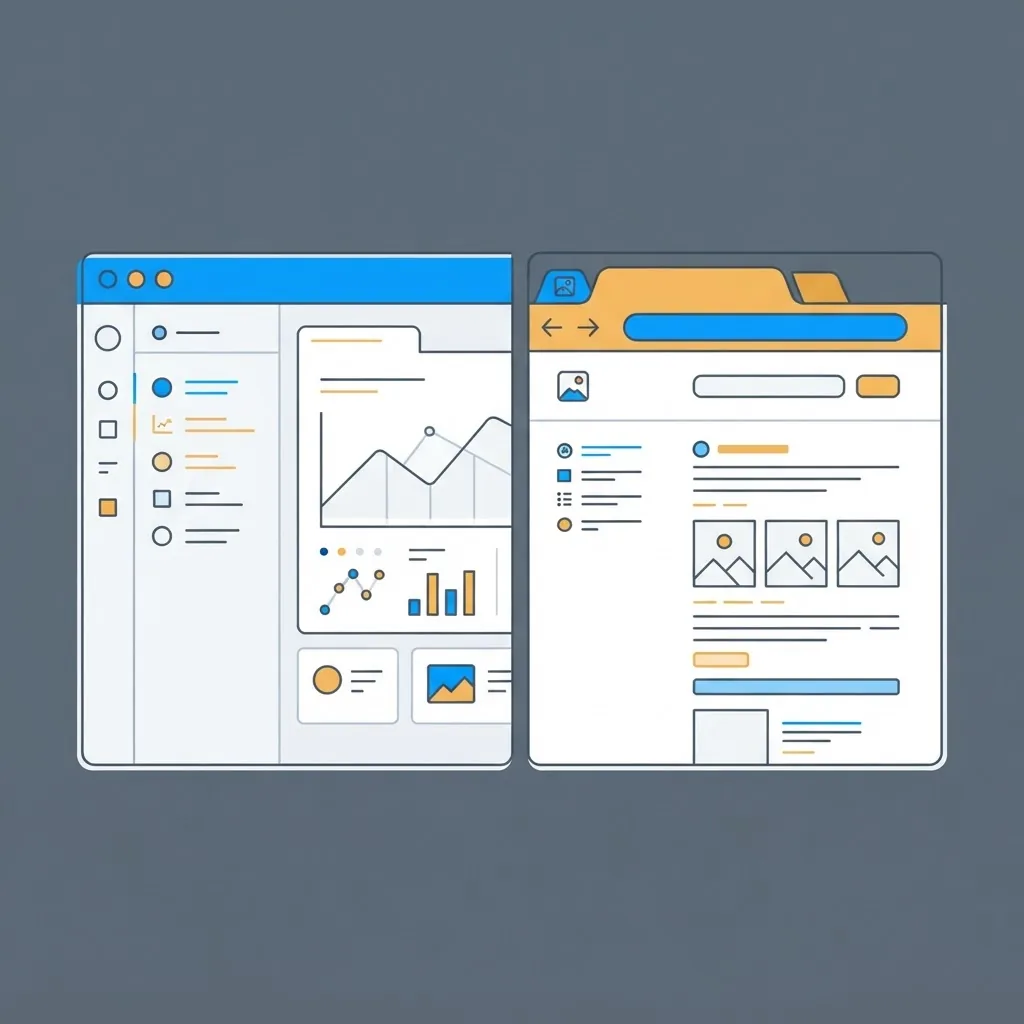
Choose desktop when the browser genuinely limits you, not out of habit. The honest test: list the capabilities your application needs, then check whether a browser can deliver each one reliably in your users' environment.
| Requirement | Desktop Application | Web Application |
|---|---|---|
| Full offline functionality | Yes, by default | Partial, needs service workers |
| Direct hardware and peripheral access | Yes | Limited and permission-gated |
| Heavy local computation (video, CAD, ML) | Yes, uses full CPU and GPU | Constrained by browser sandbox |
| Unrestricted file system access | Yes | Restricted to user-picked files |
| Instant deployment of updates | Needs auto-update system | Yes, instant |
| Works on any device with a browser | No, per-OS builds required | Yes |
| Data stays fully on-premise | Yes | Only with self-hosting |
| Typical build cost | Higher | Lower |
Strong signals that you need native: your users work in air-gapped or low-bandwidth environments, your app drives physical equipment, your data cannot legally leave the premises, or your workload saturates a CPU for minutes at a time.
Strong signals you should stay on the web: collaborative multi-user editing, frequent release cycles, and casual users who will not install anything. If you are weighing both paths, comparing scope against a web build first is worth the exercise, and teams at ZoneTechify regularly scope both routes before committing.
Choosing the Right Desktop Framework in 2026
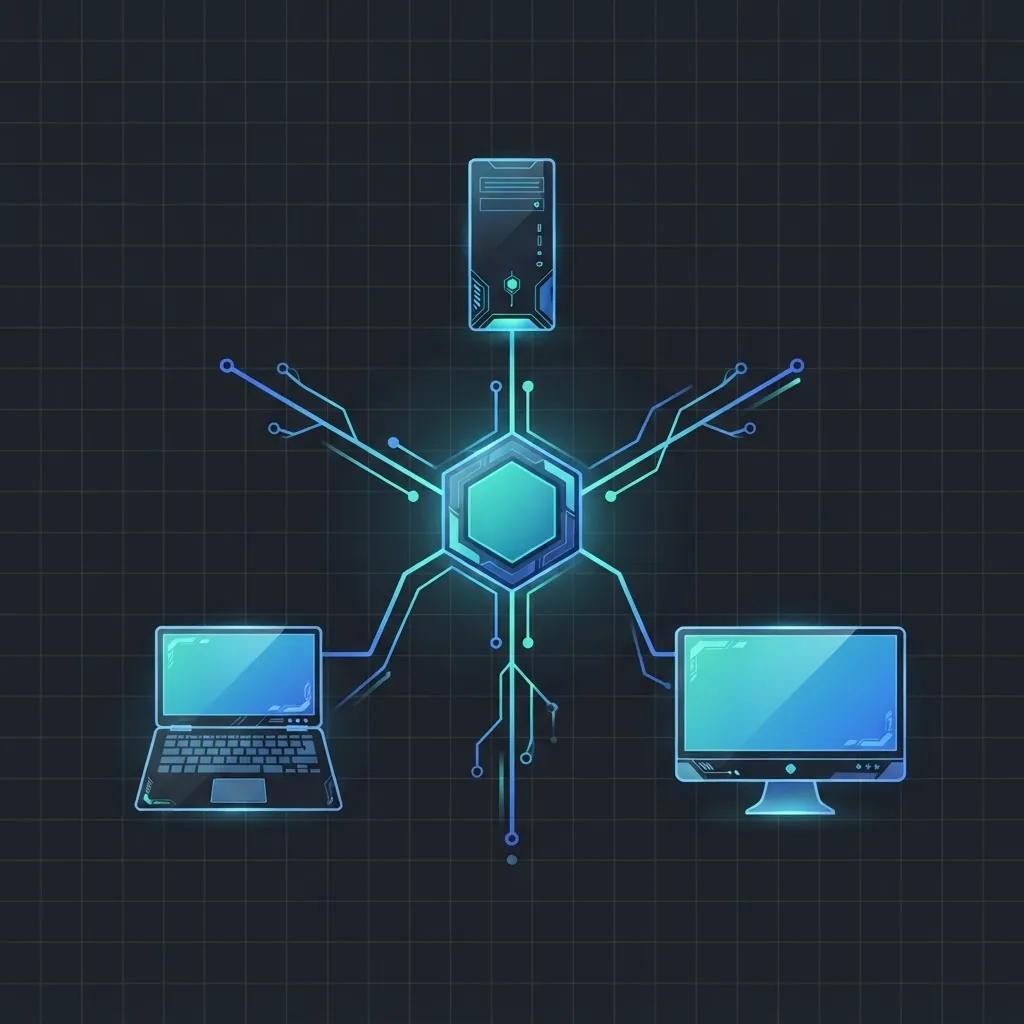
Framework choice determines your app's memory footprint, hiring pool, and long-term maintenance burden more than any other early decision.
Electron
Electron bundles Chromium and Node.js, letting web developers ship desktop apps with existing HTML, CSS, and JavaScript skills. It powers Visual Studio Code, Slack, and Figma's desktop client. The tradeoff is size and memory: a minimal Electron app ships at roughly 80 to 120 MB and consumes noticeably more RAM than a native equivalent. Choose it when you already have a web codebase and want maximum reuse.
Tauri
Tauri uses the operating system's built-in webview instead of bundling Chromium, with a Rust backend. Bundle sizes commonly land under 10 MB, roughly an order of magnitude smaller than comparable Electron builds. The catch is webview inconsistency across OS versions, which means more cross-platform testing. Choose it for lightweight utilities and security-sensitive tools.
.NET with WPF or WinUI
For Windows-first enterprise software, .NET remains the most productive option. It offers deep Windows API access, mature tooling, strong Active Directory and Office integration, and a large hiring pool. Choose it when Windows is your only real target and enterprise integration matters.
Qt and C++
Qt is the standard for performance-critical and industrial applications — medical devices, CAD tools, automotive dashboards, and manufacturing systems. It compiles to genuinely native binaries with predictable latency. Choose it when microseconds, hardware control, or embedded targets are non-negotiable.
Flutter Desktop
Flutter delivers one codebase across desktop and mobile with consistent, pixel-controlled UI. It suits products that need matching desktop and mobile experiences, though desktop-specific conventions require extra work.
Our practical rule: existing web codebase means Electron or Tauri; Windows-only enterprise means .NET; hardware or real-time constraints mean Qt; shared mobile roadmap means Flutter.
The Desktop Application Development Process

A disciplined process for desktop work differs from web delivery in one crucial way: you cannot hotfix a bad release on thousands of installed machines in thirty seconds. That reality shapes every stage.
1. Discovery and Requirements
Document target OS versions explicitly — Windows 10 and 11, macOS 13 and later, specific Linux distributions. Inventory every peripheral and legacy system the app must talk to. Vague OS support turns into painful rework.
2. Architecture and Prototyping
Build a thin vertical slice that proves the riskiest integration works: talk to the scanner, read the serial port, render the large dataset. Prove feasibility before designing screens.
3. UI and UX Design for Desktop
Desktop users expect keyboard-first workflows, dense information layouts, and persistent window state. Mobile-style design patterns feel wrong on a 27-inch monitor with a mouse.
4. Iterative Development
Ship internal builds every sprint to real hardware, not just developer machines. Desktop bugs hide in OS-version differences, display scaling, and permission prompts.
5. Cross-Platform QA
Test on clean virtual machines for each supported OS build, at 100 and 200 percent display scaling, with restricted user accounts. Fresh-install testing catches missing dependencies that developer machines mask.
6. Packaging, Signing, and Release
Budget real time here. Code signing certificates, macOS notarization, and Windows SmartScreen reputation all take days to weeks. Unsigned installers trigger security warnings that destroy user trust immediately.
Security, Offline Access, and Local Data
Desktop apps hold data on machines you do not control, which changes the threat model entirely. Local files can be copied, inspected, and modified by anyone with disk access.
Non-negotiable practices in a professional desktop build:
- Encrypt local databases at rest using SQLCipher or the OS keychain rather than storing plaintext SQLite files.
- Never hardcode API keys or secrets in the binary — shipped code can always be decompiled or inspected.
- Sign every release so users and the OS can verify authenticity.
- Validate on the server, treating the client as untrusted even for on-premise deployments.
- Design conflict resolution for offline sync before writing sync code; last-write-wins silently destroys data.
On compliance-heavy projects, local-first architecture is often the reason desktop wins. When patient records or financial data cannot legally leave a facility, an installed application with an encrypted local store is the compliant answer.
Where Desktop Applications Deliver the Most Value
Some categories consistently justify native development:
- Manufacturing and industrial control — machine interfaces, PLC communication, and production monitoring where latency and uptime are safety concerns.
- Healthcare and diagnostics — imaging viewers and lab instrument software with strict data residency rules.
- Financial and trading tools — multi-monitor terminals where render latency directly costs money.
- Creative and media production — video, audio, and 3D tools requiring GPU acceleration and large local files.
- Retail point of sale — terminals that must keep selling during an internet outage.
- Engineering and CAD — computation-heavy modeling on large local datasets.
The shared thread is dependence on local hardware, local data, or guaranteed availability.
What Desktop Application Development Costs
Cost is driven by five variables: number of target operating systems, hardware integrations, data complexity, offline sync requirements, and compliance obligations. Realistic ranges based on typical scopes:
| Project Type | Typical Scope | Indicative Range |
|---|---|---|
| Single-OS internal utility | One platform, simple data, no hardware | 15,000 to 40,000 USD |
| Cross-platform business app | Two or three platforms, cloud sync, auth | 45,000 to 120,000 USD |
| Hardware-integrated system | Peripheral or industrial equipment control | 80,000 to 250,000 USD |
| Regulated or enterprise platform | Compliance, audit trails, SSO, offline sync | 150,000 USD and up |
Two line items get underestimated most often. First, each additional operating system adds roughly 25 to 40 percent to QA and packaging effort, not just build time. Second, annual maintenance runs 15 to 25 percent of initial build cost — OS updates arrive whether or not you budgeted for them. Ask for these figures in writing during scoping.
Maintenance and Auto-Updates: The Part Nobody Plans For
A desktop app without an auto-update mechanism becomes unmaintainable within a year. Users stay on old versions, support tickets multiply across incompatible builds, and security patches never reach the people who need them.
Build these into version one:
- A signed auto-update channel using tooling such as Squirrel, Sparkle, or your framework's updater.
- Version telemetry so you know which builds are actually running in the field.
- Crash reporting with symbol upload, because you cannot inspect a user's machine.
- A rollback path for releases that break in the field.
- Staged rollouts that reach 5 percent of users before everyone.
Apple and Microsoft both ship annual OS releases, meaning a desktop app faces predictable compatibility work every year regardless of feature development. Treat maintenance as a standing budget line, not a contingency.
How to Choose a Desktop Development Partner
Most teams advertising desktop capability are web teams. The difference shows up during packaging and hardware work, when the project is already six months in.
Ask these specific questions:
- Which signed, installable desktop apps have you shipped to production? Ask for installers you can actually download and run.
- How do you handle code signing and macOS notarization? A vague answer means they have not done it.
- What is your auto-update strategy? They should name specific tooling.
- Which OS versions do you test on, and how? Look for clean-VM matrix testing.
- Who owns the code signing certificates? You should.
- What does year-two maintenance cost? Get a number before signing.
Evaluate the answers against your actual constraints rather than the framework they prefer to sell. Teams that also handle broader digital strategy and engineering, such as the specialists at WebPeak, tend to give more honest desktop-versus-web recommendations because their revenue does not depend on one answer. If your project genuinely needs custom software beyond an installed client, reviewing web application development services alongside desktop scoping helps you compare total cost of ownership properly.
Key Takeaways
- Desktop application development services cover architecture, engineering, packaging, code signing, cross-OS QA, and ongoing maintenance — not just coding.
- Native desktop wins when you need offline reliability, hardware access, heavy local computation, or on-premise data residency.
- Electron suits web-codebase reuse, Tauri delivers bundles often under 10 MB, .NET fits Windows enterprise, and Qt handles real-time and industrial workloads.
- Each additional target operating system adds roughly 25 to 40 percent to QA and packaging effort.
- Annual maintenance typically costs 15 to 25 percent of the initial build, driven partly by yearly OS releases from Apple and Microsoft.
- Auto-updates, crash reporting, and version telemetry must ship in version one, not later.
- Vet partners on shipped, signed installers and their notarization process, not general software experience.
Frequently Asked Questions (FAQ)
What are desktop application development services?
Desktop application development services cover building software installed directly on Windows, macOS, or Linux computers. The scope includes technical architecture, UI design, coding, hardware integration, installer packaging, code signing, cross-platform testing, and ongoing maintenance with auto-updates for released versions.
How much does it cost to build a desktop application?
A single-platform internal tool typically costs 15,000 to 40,000 USD, while cross-platform business applications range from 45,000 to 120,000 USD. Hardware-integrated or regulated enterprise systems commonly exceed 150,000 USD. Budget an additional 15 to 25 percent annually for maintenance and OS compatibility updates.
Is Electron or Tauri better for desktop apps?
Electron is better when you have an existing web codebase and want maximum code reuse with proven stability. Tauri is better for lightweight, security-focused apps, producing bundles often under 10 MB. Tauri requires more cross-platform testing because it uses each system's native webview.
Do desktop applications still make sense in 2026?
Yes, for specific use cases. Manufacturing control systems, medical imaging, trading terminals, video editing tools, CAD software, and retail point-of-sale systems all depend on hardware access, guaranteed offline operation, or local processing power that browser-based applications still cannot reliably provide.
How long does desktop application development take?
A focused single-platform application typically takes three to five months from discovery to signed release. Cross-platform applications with hardware integration usually take six to twelve months. Packaging, code signing, and notarization alone often need two to four weeks, which teams frequently underestimate.
Can one codebase work on Windows, macOS, and Linux?
Yes, using frameworks like Electron, Tauri, Qt, or Flutter Desktop. However, shared code does not eliminate platform work. Each operating system requires its own installer format, signing process, permission handling, and dedicated QA cycle, adding roughly 25 to 40 percent per additional platform.